Thursday, August 7, 2014

How to Delete All the Contacts on your iPhone at Once

Before selling your old iPhone,do you want to delete all contacts from your iPhone? Want to delete all the contacts from your iPhone at once? This article shows you the different ways to do both.

Different Ways to Delete iPhone Contacts
If you have contacts stored to your iPhone that you need to get rid of, you've come to the right place. Whether you need to delete one or all of them, there are several ways to erase iPhone data permanently,or easy to delete iPhone contacts:

-From the Contacts app
-From the Settings menu on the phone
-Connecting to the computer to restore to factory settings
-"Erase Contacts" app from Cydia (jailbroken phone only)
Deleting a single contact can be done from the Contacts app on the phone. 'Erase All Content and Settings', an option in the Settings menu, will allow you to wipe any saved data from the phone; this will delete all iPhone contacts at once directly from your phone. You can also restore iPhone to factory settings from your computer which will also delete all contacts on iPhone at once. An additional option for jailbroken iPhones, is an app from Cydia called "Erase Contacts". We're going to take a look at how to do each of these.

Deleting individual iPhone contacts can be done in the Contacts menu from your phone. Use thesteps below to delete an iPhone contact:

From the home screen, 
1.open Contacts

2.Select the contact you wish to delete


3.Press "Edit" (in the upper right hand corner)
4.Scroll to bottom of screen
5.Press "Delete Contact"

6.Press "Delete Contact" again to confirm
WARNING for Jailbroken iPhones
Do NOT use the "Erase All Content and Settings" options (shown directly below) on a jailbroken iPhone. Users are reporting that this causes a jailbroken iPhone to become bricked. The safest way to delete all contacts on a jailbroken phone is one at a time or using a Cydia app that was designed for jailrbroken iPhones. The following method is completely safe to use on a standard iPhone that has not been jailbroken.

Tips: You can also delete all messages on iPhone in the same steps.

WARNING for Jailbroken iPhones
Do NOT use the "Erase All Content and Settings" options (shown directly below) on a jailbroken iPhone. Users are reporting that this causes a jailbroken iPhone to become bricked. The safest way to delete all contacts on a jailbroken phone is one at a time or using a Cydia app that was designed for jailrbroken iPhones. The following method is completely safe to use on a standard iPhone that has not been jailbroken.

How to Delete All Contacts on iPhone at Once
If you are using a jailbroken iPhone, read the warning above before trying any of these steps.

Delete All Contacts from Your iPhone:

1.Open Settings


2.Select "General"
3.Scroll to the bottom of General settings
4.Select "Reset"


5.Select "Erase All Content and Settings"
6.Confirm by pressing "Erase iPhone"


*This option erases all data saved to the phone, including: contacts, music, apps, photos, etc. Make sure to sync your phone to your computer to create a backup prior to trying this method.

Deleting All Contacts on iPhone from the Computer
To delete all contacts on your phone from your computer, you must restore the phone to factory settings. Sync your iPhone to the computer and select "Restore". When prompted, confirm that you would like to restore to factory settings. This will erase all saved data from your iPhone (contacts, music, apps, photos, etc.) If you are new to restoring an iPhone and need a little more guidance, read Bringing an iPhone Back to How You Bought It for step by step instructions.

Delete All Contacts from a Jailbroken iPhone
Jailbroken iPhones with Cydia installed have an additional option to delete all contacts at once. The "Erase Contacts" app from Cydia will get the job done. Follow the steps below to use the app from Cydia:

Open Cydia and search for "Erase Contacts"
Install "Erase Contacts"
Locate the "Erase Contacts" icon from your home screen (Contacts icon with a red 'x' through it)
Select the "Erase Contacts" icon*
*Launching the application will immediately erase all contacts from your phone without giving notice or asking you to confirm. Be sure to have a backup of your phone before downloading and trying this app.

Warning by CNET: iPhone "Restore" does not delete personal data!
If you restore factory setting for your iPhone,it doest mean Erase” all iPhone data permanently,becuase some recovery software can restore them easily,you need to use a third-part eraser tool to wipe iPhone data.

Permanently Erase All iPhone Contacts Without Restore

This iPhone Data Eraser can help you deleted all contacts on iPhone permanently, what's more,it also allows you erase other iPhone data permanently, including contacts, music, pictures, messages, songs, etc. What’s the most important, those data can’t be recovered again once they are deleted by iPhone Data Eraser program, you cannot even recover them with any iPhone Data Recovery software in the market.

Free download the iPhone data eraser at first:

Download Windows Version  Download Mac Version

Step to step to erase contacts from iPhone permanently:

Step 1. Run the ios data eraser and connect your iPhone to the computer
Step 2. Choose the right option on your device
You should choose the "ERASE ALL DATA ON DEVICE" option, so that you can continue the subsequent steps.

Step 3. Start to erase all contacts on your iPhone permanently
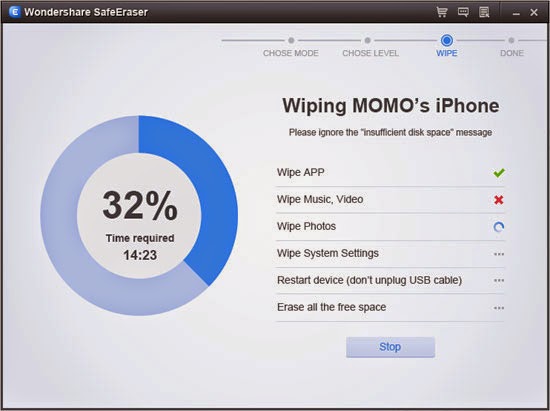

erase all iphone contacts

Tips: You can use this iPhone Data Eraser (for Windows&Mac) to erase all contact on all iPhone models at once. It not only delete data from iPhone without recoverable, but also rewrite with radom data in order to cover the erasing track. In addition to contacts,the ios data eraser also allows you delete other iPhone data permanently without restore,including text messages, videos, photos, account info, passwords and more can be deleted by this tool.

Sunday, August 3, 2014

How to Locates and Cleans Junk Files from iPhone

The iPhone is one of the most popular smartphone at the moment,it was deeply loved by users. As many other smartphones, in the course of everyday use, iPhone will generate lots of junk files that are dispersive and difficult to clean up all at once. What's more, these junk files will takes up storage space of your iPhone, speed to slow down the system. There's no doubt that you are very hate them and wanting a easy way to one-time locates and cleans junk files from iPhone. 

iPhone Data Eraser is the ideal iDevice "erase" application designed to permanently wipe all personal information from the device using US Military spec over-writing technology to render the data unrecoverable. With the help of this erased tool, you can easy locates and cleans junk files from iPhone iPad and iPod touch with a click.

Below are the download buttons of iPhone Data Eraser both for Mac and Windows version.

Download Windows Version   Download Mac Version 

Steps to Locates and Cleans Junk Files from iPhone

Step 1: Install and launch the iPhone Data Eraser, connect your iPhone to PC with an USB cable. You can see the primary interface as soon as your iPhone is detected.

Step 2: Locates junk files from your iPhone

1. Click on "Express Cleanup" in the left column. 


2. Click the "Start Scan" button to begin scanning your iPhone for junk files.

3. After the scan is complete, the total amount of junk files will be displayed. You are allowed to select the junk files you’d like to erase here. In addition, you can click the blue file size button to view file details, so as to ensure that the junk files are accurately junk before wiping.


Step 3. Clean up the junk files from your iPhone

If everything is OK, click on "Erase now" to remove the selected junk files, please wait a moment, you can see the results when the cleanup finished,  now click "Done" to return to the main window or "Rescan" to scan your device again.


What Files Are Supported by the iPhone Data Eraser

* Messages, Call History, Facetime, Contacts, Mail, Calendar, Reminders, Notes, Voice Memos, Safari Bookmarks, Photos, Videos, Apps, System Settings, Keyboard Cache, Passbook, iTunes DB, iMessage, Safari Favorites, Safari History, Voicemail, Apple ID, iCloud ID, Game Center, Apple Maps, Weather, Stocks, Newsstand.

* Messages, iMessage, Contacts, Call History, Facetime, Calendar, Reminders, Notes, Safari Bookmarks, Photos, Videos

Related Tutorials:

How to permanently erase all messages from iPhone, iPad and iPod

Wednesday, July 30, 2014

3 ways to erase all of your personal data off an iPhone or iPad

There are three way to wipe all data from iPhone and iPad:

Before selling your old iPhone or iPad,you must to erase all personal data on iPhone or iPad permanently,even on data recovery can’t get them back.

Why is Apple’s Reset Solution Unsafe

-Devices that support hardware encryption: Eraser users settings and information by removing the encryption key that protects the data.This process takes just a few minutes.

-Devices that overwrite memory: Overwrites users settings and information,writing a series of ones to the data partition.This process can take several hours,depending on the storage capactity of your iPhone or iPod touch.during this time,the devic displays the Apple logo and a progress bar.

-Note:If possible,connect your device to a charger and leave it connected until the process is complete.


If you're selling your iPhone or iPad or passing it on to someone else, the first thing you'll want to do is make sure they won't have access to any of your personal data. Fortunately, iOS makes it very easy to wipe all your data off your old iPhone or iPad, no computer required. Here's how:

Before doing this, you obviously want to make sure you either have an iCloud backup or an iTunes backup of your data. Otherwise, you won't be able to get your stuff back. Once you're sure you have a backup for your own use, proceed on.

Turn off Find My iPhone

If you're on iOS 7 already and you have an iCloud account linked to your iPhone or iPad, you'll need to sign out of Find My iPhone before you can truly wipe the device.

Launch the Settings app from the Home screen of your iPhone or iPad.
Scroll down and tap on iCloud.
Scroll down once more and turn Off the Find My iPhone option.
You will be prompted to enter your iCloud password. Once you're done entering your password, tap Turn Off.


That's it, you can now proceed to wiping your iPhone or iPad. The above steps are only necessary if the iPhone or iPad you're trying to restore is on iOS 7.0 or above.

Erase all data from your iPhone or iPad

1.Launch the Settings app from the Home screen of your iPhone or iPad.
2.Now tap on General.
3.Scroll all the way to the bottom and tap on Reset.
4.Tap on Erase All Content and Settings.
5.You will be prompted to confirm your selection, tap on Erase iPhone.
6.Once more you will be reminded that you can't undo this action, tap Erase iPhone one more time to confirm.


That's it. Your iPhone or iPad will reboot after a few minutes and all your personal data should be gone and again look like the day you pulled it out of the box.

Two Ease Way to Erase iPhone,iPad Data Permanently with iOS Data Eraser:

The iOS Data Eraser is an Data Erasure program which is developed to delete all your data from your iPhone/iPad/iPod Touch, making it as fresh as new and saving you from worries of personal infoleakage or identity theft when you dispose of your old phone. Top security level ensures you that nothing deleted will ever be recovered again, even with the most powerful ios data recovery program or a government facility’s state-of-art data recovery technology.

Two ways to erase data from iPhone, iPad permanently:

Part 1. Permanent Delete iPhone iPad with the iPhone Data Eraser

iPhone Data Eraser, which can erase all data including contacts, messages, call history, apps, system setting, photo, video, keyboard cache, safari bookmark. Indeed, iPhone Data Eraser worth trusting and it makes the work more effective.

Step 1. Launch the iPhone Data Eraserand connect your iPhone to the computer
Step 2. Choose Erase all data on iPhone,iPad device and click on it
Step 3. Start to erase all data on your iPhone,iPad now
Step 4. Click “Done” and the wiping completed

erase all data on your iPhone,iPad
Part 2. Permanent Erase iPad,iPhone with the MobileTrans

Mobile Transfer is the high-cost-performance and all-around data processing software, which allows your to direct transfer data between iPhone and iPad without iTunes, backup data from iPhone iPad to PC, restore backup file to supported idevices, and one click to erase all data from iPhone iPad permanently with a click.

Step 1. Connect Your Old iPhone/iPad/iPod touch to the Computer
Step 2. Start to Erase Everything from Your iPhone/iPad/iPod touch


Notes: Both of the iPhone Data Eraser and MobileTrans can permanently delete all data on your iPhone iPad and iPod touch, and they can not recover again, so before wiping your iDevices, please backup the data with iTunes, iCloud or this MobileTrans at first, so as to recover the data you still wanted.

Download Windows Version  Download Mac Version

Tip: The MobileTrans not only can help you erase data from iPhone, iPad permanently,but also can help you delete all data from Android phone, Nokia,ect.What’s more,it allows you transfer data between iPhone, Android and Nokia directly.

Thursday, July 3, 2014

How to Delete All Photos from iPhone Before selling

Want to delete photos from iPhone at once before selling? This article mainly teach you a easy way erase all photos on iPhone permanently.Keep reading and follow the tutorial below to delete all photos on iPhone 5S/5C/5/4S/4/3GS.
Delete All Photos from iPhone
How to Delete All iPhone Photos
In order to delete photos from iPhone once and for all, you need the help of iPhone Data Eraser which is a powerful software for iPhone users to delete iPhone photos as well as other files, such as contacts, messages, videos and so on. With this iPhone data eraser, you can simply delete all iPhone photos within 3 steps only. Firstly you'd better download the trial version for free and install it on your PC.

Download Windows Version  Download Mac Version

** Please note that the deleted iPhone data can not be recovered from iPhone even with the world's no.1 data recovery software once they are deleted by iPhone Data Eraser. So you'd better make a backup of your iPhone for the sake of restoring the contacts in the future.

How to Delete All Photos from iPhone

Step 1. Connect your iPhone to computer

After running the iPhone Data Eraser on your computer, connect your iPhone to it. Your iPhone will be detected automatically, and you will get an interface as below.


Step 2. Choose the right data erasing option

iPhone Data Eraser program provides two ways of data erasing for you: "Erase all files on iOS devices" and "Erase deleted data". Select the first one to move forward.


Step 3. Delete all photos on your iPhone

There are three choices available for you to delete your iPhone contacts. Among the "High, Medium, Low", you are recommended to choose the "Medium" level, which takes the moderate time to delete the data. Click "Start" button to begin deleting iPhone contacts.


After the deleting process, your iPhone will become a completely new device. If in other cases, you accidentally deleted your iPhone photos, you can use iPhone Data Recovery program to recover lost contacts on iPhone.

Download Windows Version  Download Mac Version

But please note that contacts deleted by iPhone Data Eraser would be unrecoverable any more even with iPhone data recovery tool.

Wednesday, June 25, 2014

Permanently Delete iPhone Contacts, SMS Before Selling

Before selling your old iPhone or give it away,please remember deleted all data from iPhone permanently,you must to erase those existing or deleted data permanently,including contacts, text messages, photos, videos, Apple ID and other personal information stored on your iPhone.
Make sure your iPhone contacts, SMS messages and other personal information will not be stolen after selling iPhone,you must to erase all iPhone contents permanently.

iPhone Data Eraser
Tips: If you erase iPhone data by restore iPhone to factory setting,it is not able to erase data permanently,because some data recovery in market can get them back easily.

To delete contacts and SMS on iPhone permanently even no data recovery software restore them,you need to use a professional iPhone Data Eraser software.

Today,I recommend you this useful iPhone Data Eraser,which can help you permanently deleted those existing or deleted files from iPhone.You can use this iOS Data Eraser software to wipe all data on iPhone before selling, including contacts, messages, photos, videos, apps, account info, passwords and other personal data stored on iPhone.Let’s teach you how to erase contacts, sms from iPhone 5S/5/4s/4/5c permanently with this help of iPhone Data Eraser tool.

First of all,please free download the iPhone data eraser (Mac&Windows):

Download Windows Version   Download Mac Version 

The iPhone Data Eraser supports erase all iPhone data permanently:

Supports delete all data from iPhone
Permanently Delete All Contacts, SMS from iPhone Before Selling

Step 1. Connect your iPhone to computer

After downloading the iPhone Data Eraser on your computer, connect your iPhone to it then, and run this program on your computer. Your iPhone will be detected automatically, and you will get an interface below.

Connect your iPhone to computer

Step 2. Choose the right option on your device

You should choose the "ERASE ALL DATA ON DEVICE" option, so that you can continue the subsequent steps.

Choose the right option on your device
Step 3. Delete SMS and contacts on your iPhone

There are three choices available for you to delete your data. Among the "High, Medium, Low", you are recommended to choose the "Medium" level, which takes the moderate time in deleting. Click "Start" button to begin the processing.

Delete SMS and contacts on your iPhone
Use your iPhone as new,or selling it for as new one


When the deleting process is over, your iPhone will become a completely new iPhone. You can import the data that you previously backed up to your iPhone and enjoy it as you wish.

Download Windows Version   Download Mac Version 

What’s more about iPhone Data Eraser:

iPhone Data Eraser is a professional software for iPhone users to delete iPhone data permanently, including photos, contacts, messages, songs and other iPhone contents. The most laudable feature is that data cannot be recovered again once they are deleted by iPhone Data Eraser, even when you want to recover deleted contacts and text messages from iPhone later.

Read more: How to delete Contacts on iPhone before selling

How to deleted iPhone photos before selling

Saturday, May 24, 2014

Wipe all deleted contacts on iPhone permanently

Before selling your old iPhone,you need to erase all contacts from iPhone,including those contacts have been deleted and those still stored in the phone's address book.Many iPhone users know that we must to erase all iPhone contacts before selling it,but when we delete contacts by clicking the simple "Delete" is not enough, and "Erase All Content and Settings" doesn't really delete data, because data recovery in market can recover those deleted contacts easily.Howeve,how to erase deleted contacts from iPhone permanently?
erase deleted contacts on iPhone
Here I strongly recommend this contacts eraser: iPhone Data Eraser. It can erase deleted contacts on iPhone with one click. And the deleted contacts cannot be restored by any data recovery tools. iPhone Data Eraser is compatible with iPhone 5s/5c/5/4S/4/3GS and any iPad, iPod. There are the steps below.This article main teach you use a iPhone data erase tool to wipe all deleted contacts from iPhone directly.

 Download Windows Version  Download Mac Version

How to Erase Deleted Contacts from iPhone Permanently

Step 1: Backup iPhone Contact to Computer
Before you begin the next step, you should seriously do a full backup of your important contacts to computer first. All deleted iPhone data will be wiped permanetly and it won't be retrieved. Please make backup first.Here,I recommend you this iPhone to computer transfer to backup contacts from iPhone to computer directly.

Step 2: Connect iPhone to computer
After you backup iPhone data, run iPhone Data Eraser. And Connect your iPhone to computer.


Step 3: Select the right mode
After connecting your iPhone suceessfully, choose the first one: Erase all content and settings.
There are three security levels to erase all data on your device. You can choose any of them according to your requirement. Higher levels will ask for more time. Here, let’s choose the medium one.


Tips: Low: Overwrite all of your data with zeros to ensure that the files are not recoverable.
Medium: Overwrite your device with junk files to ensure that the files are not recoverable, and no one knows that you've erased your device.(the default one)
High: Erase and overwrite your device three times, and the security standard is based on the U.S. DOD 5220.22-M, more secure for confidential data destruction on your device.

If you've choose "ERASE DELETED FILES", then the iOS Data Eraser will scan your device, displaying all the files you've deleted


Afer scanning deleted files, you can select unwanted data to erase.


Step 4: Start deleting contacts on iPhone
Then click "Start" button to delete all the data on your iPhone now. Please keep iPhone connected to computer during the process. Your iPhone data will be erased.


Note: Don't try to restore iPhone from iCloud or iTunes, or the lost data and deleted messages will be back. Transfer the useful data that you've backed up previously to your iPhone. You can put it back to your iPhone after the deleting.

Download Windows Version  Download Mac Version

You can't find any contacts on your iPhone, even with ios data recovery tools. As a matter of fact, the tool supports from iOS 5.0 to iOS 7.0, including iPhone, iPad and iPod. Here are file types supported to erase, such as message, contact, email, note, reminder, system setting, photo, bookmark and more

Read more:

How to delete SMS from iPhone

Erase Data On iPhone iPad iPod On Mac

Delete Emails on iPhone Permanently